 AlpacaKeep
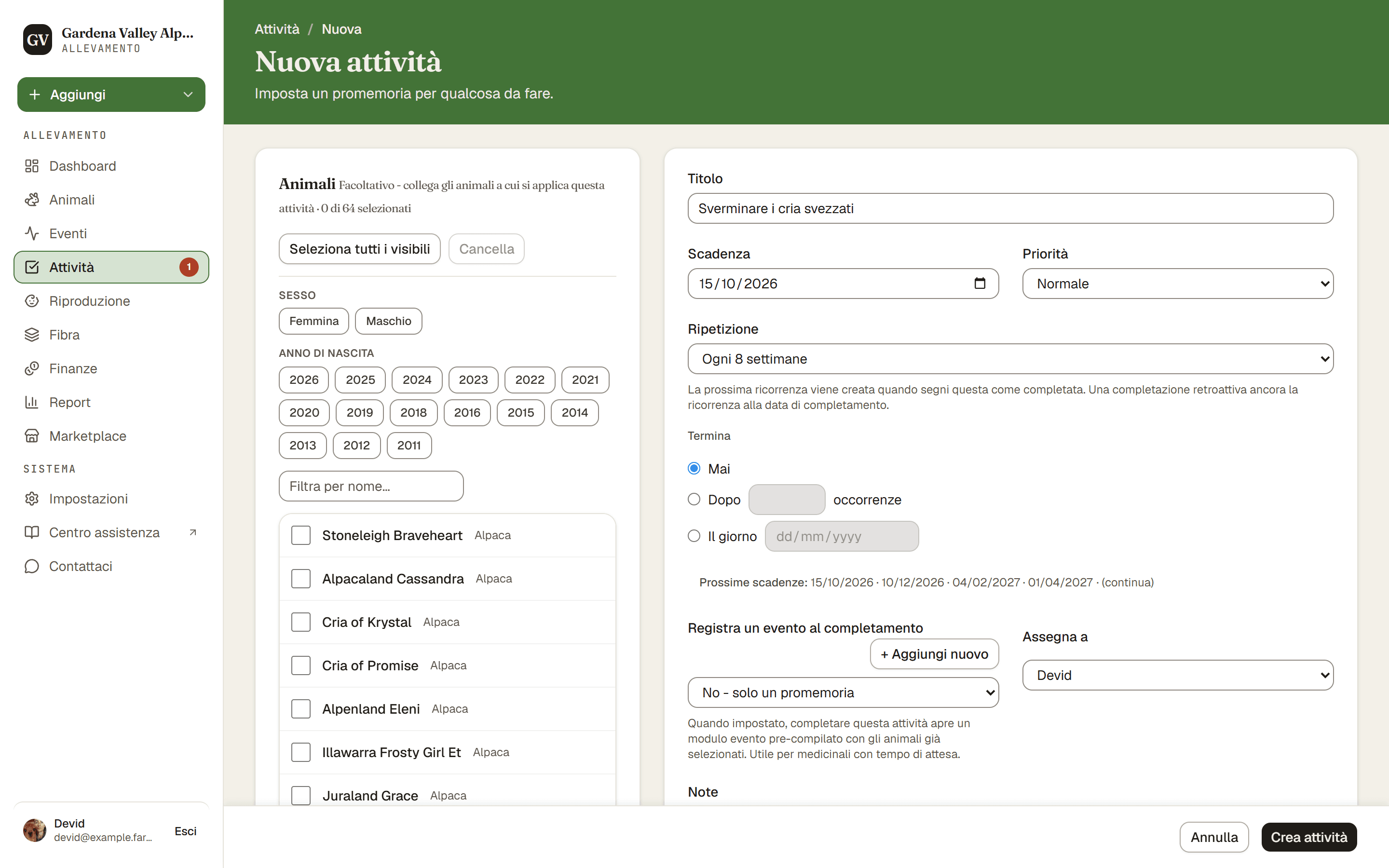
Per creare un'attività, vai su Attività e premi Nuova attività. Dalle un titolo e una scadenza, e hai finito. Tutto il resto è facoltativo.
Passaggi
- Attività → Nuova attività. Si apre il modulo per la nuova attività.
- Titolo e Scadenza. Scrivi cosa c'è da fare e scegli quando è in scadenza. Il titolo è obbligatorio, e un'attività ricorrente richiede anche una scadenza.
- Priorità. Scegli Bassa, Normale, Alta o Urgente. Serve solo ad aiutarti a ordinare e individuare i lavori importanti.
- Note (facoltativo). Aggiungi eventuali dettagli in più in Note.
- Collega un tipo di evento (facoltativo). Se completare questa attività significa registrare un evento, come una vaccinazione, usa il campo Registra un evento al completamento. Così, completando l'attività, si apre per te un modulo evento già compilato.
- Assegnala (facoltativo). Scegli un membro dell'allevamento in Assegna a così sa che è sua.
- Aggiungi animali (facoltativo). Collega l'attività a uno o più Animali, così compare anche nelle loro pagine.
- Crea attività. L'attività finisce nella tua lista Attività.
Falla ripetere
Apri il menu Ripetizione per impostare una cadenza. Le tue scelte sono:
Poi scegli quando si ferma, in Termina:
- Mai, così va avanti per sempre (predefinito), oppure
- Dopo N occorrenze (si ferma dopo quel numero di attività), oppure
- Il giorno (si ferma dopo quel giorno).
Buono a sapersi. Un'attività ricorrente non riempie la tua lista di copie future. La successiva compare solo quando segni come completata quella attuale. Vedi Come funzionano le attività ricorrenti.