 AlpacaKeep
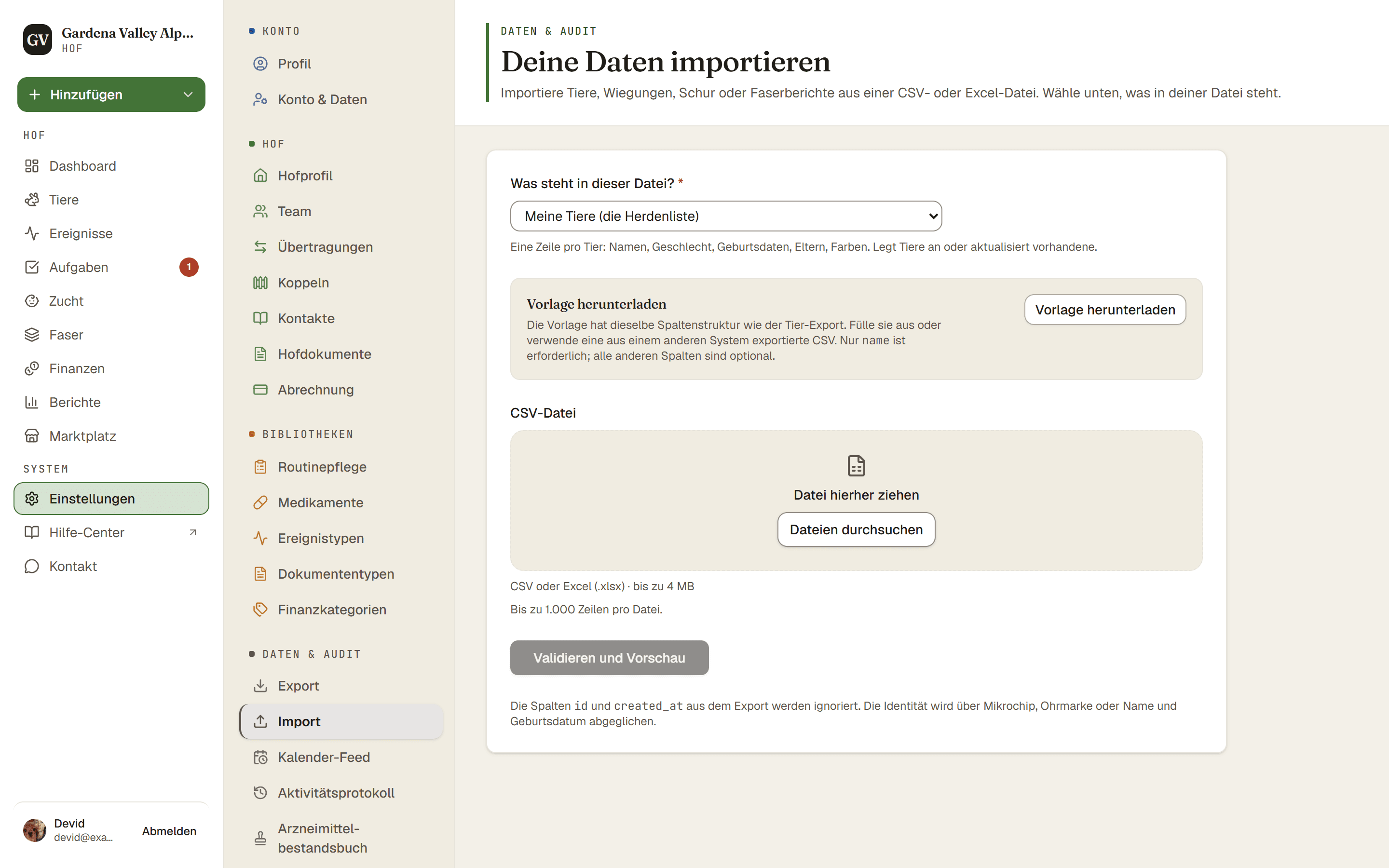
Du kannst deine ganze Herde aus einer Tabelle übernehmen, statt jedes Tier einzeln einzutippen. Speichere deine Tiere als CSV-Datei, gehe dann zu Einstellungen → Import, lade sie hoch, prüfe die Vorschau und importiere.
Gut zu wissen. Der Tabellen-Import (CSV / Excel) ist in jedem Tarif kostenlos, auch im Free-Tarif. Bring die ganze Herde auf einmal herein, statt Tiere einzeln anzulegen.
Schritte
- Einstellungen → Import. Öffne die Importseite.
- Datei wählen. Wähle unter Was steht in dieser Datei? den Eintrag Meine Tiere (die Herdenliste). Wähle dann die CSV- oder Excel-Datei, die du aus deiner Tabelle oder deiner alten App gespeichert hast (max. 4 MB, 1000 Zeilen).
- Validieren und Vorschau. Drücke Validieren und Vorschau. AlpacaKeep liest die Datei und zeigt dir, wie deine Spalten zugeordnet sind.
- Sag AlpacaKeep, wie es die Datei lesen soll. Prüfe unter Wie deine Datei geschrieben ist das Datumsformat, das Dezimalformat, die Höheneinheit (Zentimeter oder Zoll) und die Gewichtseinheit. AlpacaKeep trägt seine beste Vermutung ein. Stell sie richtig ein, denn aus den Zahlen allein lässt sich das nicht immer erraten. Wird keine Spalte deiner Datei als Herkunft importiert, siehst du außerdem Herkunft, wenn die Datei nichts angibt: Wähle Im eigenen Bestand geboren oder Von einem anderen Hof zugekauft. Drücke dann Weiter zur Prüfung.
- Importieren. AlpacaKeep zeigt dir, was es gefunden hat, bevor etwas gespeichert wird. Sieh es dir genau an, und wenn alles stimmt, drücke Import bestätigen.
Wie AlpacaKeep Tiere abgleicht
Um dasselbe Tier nicht doppelt anzulegen, versucht AlpacaKeep, jede Zeile einem Tier zuzuordnen, das du schon hast. Es prüft in dieser Reihenfolge:
- Mikrochip zuerst.
- Gibt es keinen Mikrochip-Treffer, die Ohrmarkennummer.
- Passt keines von beiden, Name plus Geburtsdatum.
- Zuletzt nur der Name. Das ist ein schwacher Treffer, deshalb wird die Zeile als Möglicher Doppeleintrag, prüfen markiert und übersprungen, außer du entscheidest dich, sie zu aktualisieren.
Ein starker Treffer (1 bis 3) aktualisiert das vorhandene Tier. Kein Treffer legt ein neues an.
Sieht etwas falsch aus? Rückgängig machen
Gut zu wissen. Wenn der Import fertig ist, hat die Ergebnisseite eine Schaltfläche Diesen Import rückgängig machen. Sie entfernt nur die Tiere, die der Import angelegt hat. Änderungen an Tieren, die du schon hattest, macht sie nicht rückgängig. Sie behält außerdem jedes importierte Tier, das inzwischen Elternteil eines anderen Tieres ist oder das du seitdem zum Verkauf angeboten, auf deiner Herdenseite gezeigt, reserviert, verkauft, übertragen, verliehen oder als verstorben erfasst hast. So bleiben deine Stammbäume und Verkäufe sicher. Ein Tier, das du nur gewogen, behandelt oder in eine Koppel verschoben hast, wird trotzdem entfernt.