 AlpacaKeep
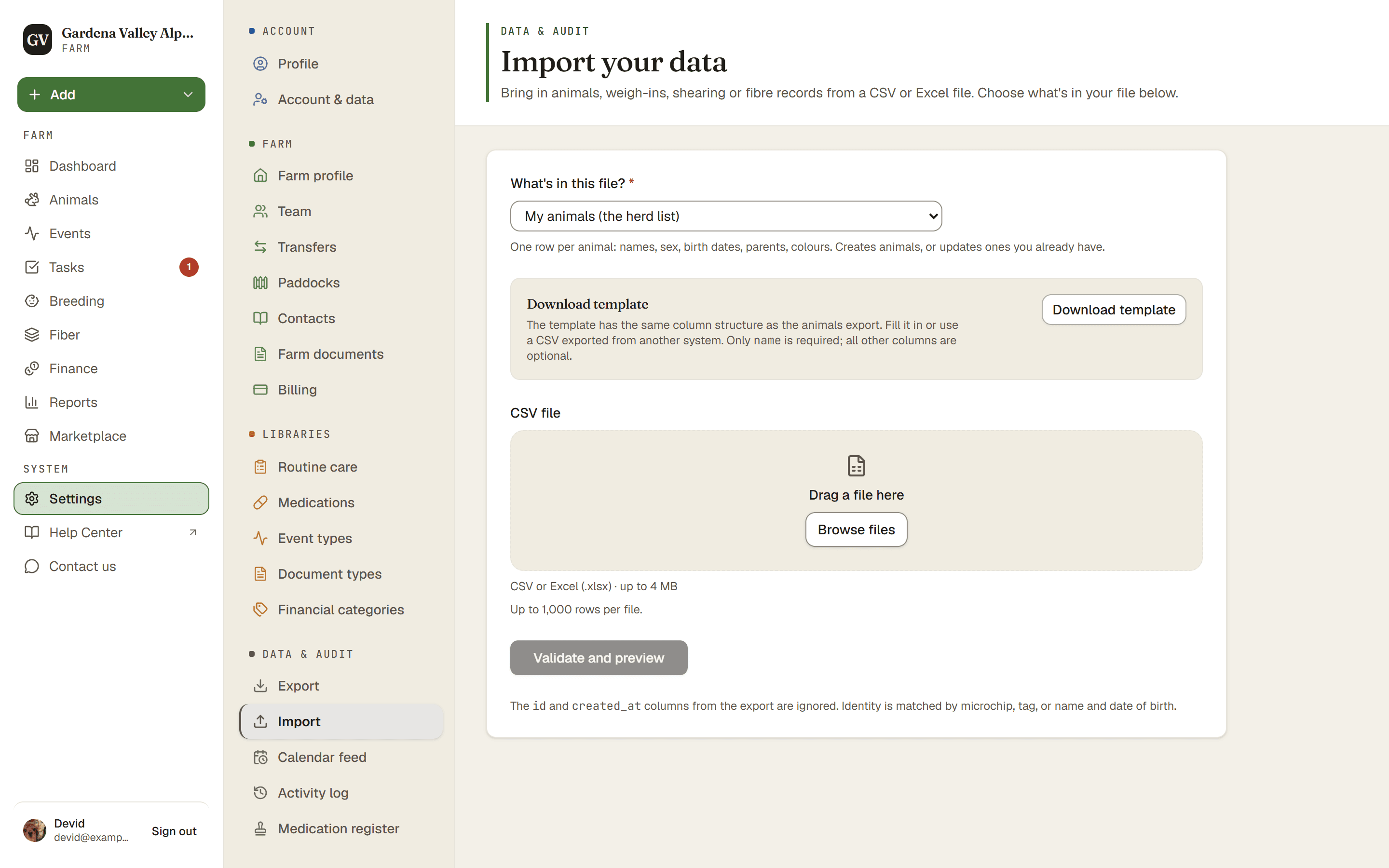
You can bring your whole herd in from a spreadsheet instead of typing each animal. Save your animals as a CSV file, then go to Settings → Import, upload it, check the preview, and import.
Good to know. Spreadsheet import (CSV / Excel) is free on every plan, including Free. Bring the whole herd in without adding animals one at a time.
Steps
- Settings → Import. Open the import page.
- Pick your file. Under What's in this file?, choose My animals (the herd list). Then choose the CSV or Excel file you saved from your spreadsheet or old app (max 4 MB, 1,000 rows).
- Validate and preview. Press Validate and preview. AlpacaKeep reads the file and shows how your columns line up.
- Tell it how to read your file. Under How your file is written, check Date format, Decimal format, Height unit (Centimetres or Inches) and Weight unit. AlpacaKeep fills in its best guess. Get these right, because they cannot always be guessed from the numbers. If no column in your file is imported as origin, you also see Origin when the file does not say: pick Bred on my farm or Acquired from another farm. Then press Continue to review.
- Import. AlpacaKeep shows you what it found before anything is saved. Look it over, and when it looks right, press Confirm import.
How AlpacaKeep matches animals
To avoid creating the same animal twice, AlpacaKeep tries to match each row to an animal you already have. It checks in this order:
- Microchip first.
- If there is no microchip match, the tag number.
- If neither matches, the name plus date of birth.
- Last, the name alone. This is a weak match, so the row is marked Possible duplicate, review and skipped unless you choose to update it.
A strong match (1 to 3) updates the existing animal. No match creates a new one.
If it looks wrong: undo
Good to know. After the import finishes, the result screen has an Undo this import button. It rolls back only the animals the import created. It does not undo changes it made to animals you already had. It also keeps any imported animal that is now the parent of another animal, or that you have since listed for sale, shown on your herd page, reserved, sold, transferred, put on loan or recorded as dead. That way your pedigrees and sales stay safe. An animal you only weighed, treated or moved to a paddock is still removed.