 AlpacaKeep
A reference animal is a lightweight pedigree entry for an animal you want in your family trees but do not manage. It does not count toward your plan's animal limit, so you can add as many as you need.
When to use one
Add a reference animal when you want an animal in your pedigrees and inbreeding (COI) math, but you will not record its day-to-day life:
- An outside stud from another farm that covered one of your dams.
- A deceased ancestor you never owned but want in the family tree.
- Off-farm relatives, like a cria you sold or a parent on another farm.
If you only have a name and nothing more, you can just type it in instead. See Linking parents.
Using a stud from another farm
It depends on where the stud lives:
- You take your females to him, or he visits for the day. He is an outside stud. In the mating form, press + Outside stud next to Sire and type his name. He is saved as a reference animal with the mating. See Log a mating.
- He lives on your farm for a while, even a leased stud. Add him to your herd as a normal animal with Acquired from another farm, and tick Use for breeding (stud).
Done with an outside stud? Open his page (Animals → ⋯ → Reference animals, then the stud) and press Remove from sire list on the Sire list card. This never deletes him: he stays in every pedigree, and + Outside stud still finds him. Use him again from there and he is back on the list, or press Show in sire list.
Why it does not use up your plan
Your plan limits how many tracked animals you can manage. A reference is a stub, not a full animal, so it is exempt from that count. Adding a reference for a famous outside stud will never push you over your animal limit.
Good to know. References stay free on every plan, and there is no cap on how many you can add.
Where references live
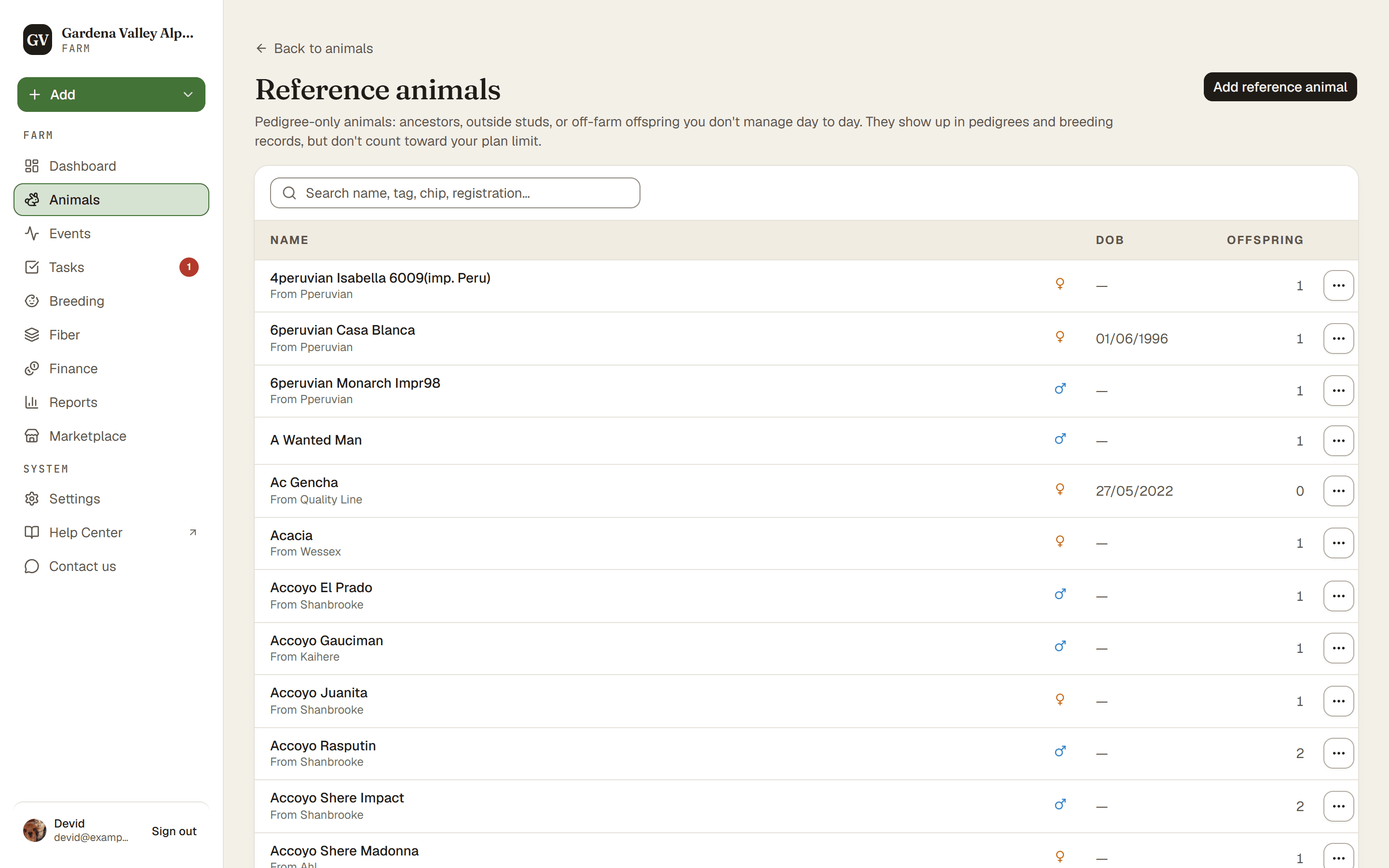
Open Animals, then Reference animals in the page's ⋯ menu. From there you can add a new reference or edit an existing one. The reference form is short on purpose: name, species, sex, date of birth, colors, source farm, and notes. If you know them, you can also add the reference's own sire and dam, so you can build a deeper tree.
Good to know. You cannot delete a reference while it is still listed as a parent of a live animal or used in a breeding record. Unlink it first, or leave it. References are free.
Promote or demote later
A reference is not a dead end:
- Add to my herd turns a reference into a full tracked animal, from its edit page. It asks where the animal comes from: From another farm (name the farm and the arrival date, so it appears on your herd register as an arrival) or Bred on my farm (it appears as born here, with no arrival date). You can also mark a male as a Working stud and, if you bought him, add the purchase price. It re-checks your plan limit (because it now counts) and keeps every parent link intact.
- Only a reference that is still alive and with you can be added. One recorded as deceased, sold or transferred stays part of the pedigree history; the edit page says so instead of showing the button.
- If the same animal is already in your herd, the dialog warns you. Merge the reference into the herd animal from the references list instead of adding it twice.
- Convert to reference turns a tracked animal back into a reference, from its ⋯ menu. This only works if the animal has no history yet, like events, weights, or breeding records. For an animal you just added from a reference, only what you recorded since then counts, and the conversion puts back its origin, arrival date and stud setting as they were.
Watch out. Promoting a reference adds one to your animal count. If you are already at your plan limit, you will need to upgrade or free up a slot first.